
Learn how to set up Firestick with this comprehensive guide. Follow the step-by-step instructions to get your Firestick up and running quickly and easily.
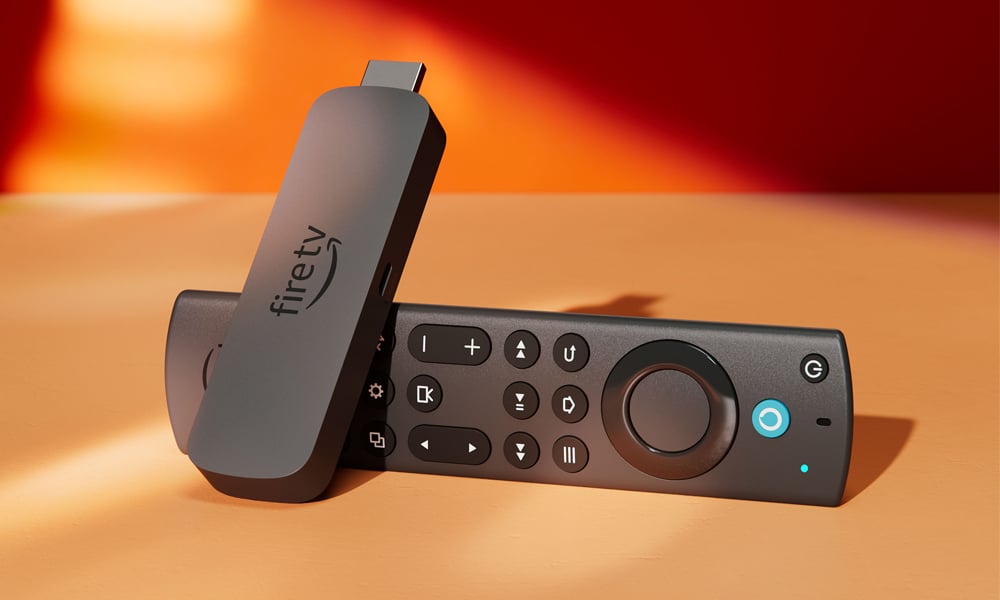
In this digital age, streaming devices have become a popular choice for entertainment enthusiasts. Among the various streaming devices available in the market, Amazon Firestick stands out as a reliable and feature-packed option. With its compact size and user-friendly interface, Firestick allows you to transform your regular TV into a smart TV, providing access to a wide range of streaming content. If you're new to Firestick and wondering how to set it up, you've come to the right place. In this article, we will provide you with a step-by-step guide on how to set up Firestick and get started with your favorite shows and movies.
Table of Contents
Heading |
1. What is Firestick? |
2. Unboxing and Contents |
3. Connecting Firestick to Your TV |
4. Powering Up Firestick |
5. Setting Up the Wi-Fi Connection |
6. Pairing the Remote |
7. Configuring Display Settings |
8. Linking Your Amazon Account |
9. Managing Apps on Firestick |
10. Installing Popular Streaming Apps |
11. Setting Up Parental Controls |
12. Customizing Firestick Settings |
13. Using Alexa Voice Control |
14. Troubleshooting Common Issues |
15. Frequently Asked Questions (FAQs) |
16. Conclusion |
1. What is Firestick?
Before diving into the setup process, let's understand what Firestick is and how it works. Firestick is a streaming media player manufactured by Amazon. It is a small and portable device that connects to your TV's HDMI port, allowing you to access various streaming services and apps. Firestick runs on the Fire OS, a customized version of the Android operating system, providing a seamless streaming experience on your TV.
2. Unboxing and Contents
When you unbox your Firestick, you will find the following contents:
- Firestick device
- Alexa Voice Remote
- HDMI extender (optional)
- Power adapter
- AAA batteries (for the remote)
- Quick Start Guide
Make sure you have all these items before proceeding with the setup.
3. Connecting Firestick to Your TV
To connect Firestick to your TV, follow these steps:
- Insert one end of the HDMI cable into the HDMI port on your TV.
- Connect the other end of the HDMI cable into the HDMI port on the Firestick device.
- If your TV has limited space around the HDMI ports, you can use the HDMI extender to provide additional room for connecting the Firestick.
- Plug the Firestick's power adapter into an electrical outlet.
4. Powering Up Firestick
Once you have connected Firestick to your TV, it's time to power it up:
- Turn on your TV and select the appropriate HDMI input channel.
- Press the Home button on the Alexa Voice Remote to power on the Firestick device.
- Wait for the Firestick logo to appear on your TV screen.
5. Setting Up the Wi-Fi Connection
To connect your Firestick to Wi-Fi, follow these steps:
- Use the navigation buttons on the Alexa Voice Remote to select your preferred language.
- Select your Wi-Fi network from the list of available networks.
- Enter your Wi-Fi password using the on-screen keyboard.
- Press the Play/Pause button on the Alexa Voice Remote to connect to the Wi-Fi network.
6. Pairing the Remote
To pair your Alexa Voice Remote with Firestick, follow these steps:
- Hold the Home button on the remote for about 10 seconds.
- The Firestick will automatically detect and pair with the remote.
7. Configuring Display Settings
Firestick offers various display settings to optimize your viewing experience. Follow these steps to configure the display settings:
- From the Firestick home screen, go to "Settings."
- Select "Display & Sounds."
- Choose your preferred display resolution and refresh rate.
- Adjust the screen size and position if necessary.
- Enable "Display Mode Switching" for automatic resolution and refresh rate changes based on content.
8. Linking Your Amazon Account
To access your purchased content and enjoy personalized recommendations, you need to link your Amazon account with Firestick:
- From the Firestick home screen, go to "Settings."
- Select "My Account."
- Choose "Amazon Account" and select "Register."
- Enter your Amazon account credentials and select "Sign in."
9. Managing Apps on Firestick
Firestick allows you to install and manage a wide range of apps. Here's how you can manage apps on your Firestick:
- From the Firestick home screen, go to "Apps" or "Your Apps & Channels."
- Select "See All" to view all installed apps.
- Highlight an app and press the Options button on the remote.
- Choose from various options like "Move," "Uninstall," or "Manage Installed Applications."
10. Installing Popular Streaming Apps
To enhance your streaming experience, you can install popular apps on your Firestick. Follow these steps to install apps:
- From the Firestick home screen, go to the "Apps" or "Your Apps & Channels" section.
- Select "Categories" to browse different app categories.
- Choose a category and explore the available apps.
- Highlight the app you want to install and press the Select button on the remote.
- Select "Get" or "Download" to start the installation process.
11. Setting Up Parental Controls
If you want to restrict certain content on Firestick, you can set up parental controls:
- From the Firestick home screen, go to "Settings."
- Select "Preferences" and then "Parental Controls."
- Enable parental controls and set a PIN.
- Choose the content categories you want to restrict.
12. Customizing Firestick Settings
Firestick offers various settings that you can customize according to your preferences. Here are some settings you can explore:
- Display & Sounds
- Accessibility
- Applications
- Controllers & Bluetooth Devices
- Network
- Preferences
13. Using Alexa Voice Control
Firestick comes with Alexa integration, allowing you to control your device using voice commands. Here are some useful voice commands:
- "Open [app name]."
- "Play [movie/TV show title]."
- "Search for [content]."
- "Go to [setting name]."
- "Launch [app or feature]."
- "Find [genre] movies."
14. Troubleshooting Common Issues
If you encounter any issues while setting up or using Firestick, here are some common troubleshooting steps:
- Restart Firestick and your TV.
- Check the HDMI connection.
- Ensure the Wi-Fi signal is strong.
- Update the Firestick firmware.
- Clear app cache and data.
- Reset Firestick to factory settings.
15. Frequently Asked Questions (FAQs)
FAQ 1: How do I reset my Firestick to factory settings?
To reset your Firestick to factory settings, follow these steps:
- From the Firestick home screen, go to "Settings."
- Select "My Fire TV" or "Device" (depending on your Firestick model).
- Choose "Reset to Factory Defaults" or "Reset."
- Confirm the action and wait for the reset process to complete.
FAQ 2: Can I use Firestick without an Amazon account?
While an Amazon account is not mandatory, it is recommended to link your Amazon account with Firestick to access various features and content.
FAQ 3: Can I use my phone as a remote for Firestick?
Yes, you can use the Fire TV app on your smartphone as a remote for Firestick. Download the app from your device's app store and follow the instructions to set it up.
FAQ 4: How do I update apps on Firestick?
To update apps on Firestick, follow these steps:
- From the Firestick home screen, go to "Apps" or "Your Apps & Channels."
- Highlight the app you want to update and press the Options button on the remote.
- Select "More Info."
- If an update is available, choose "Update."
FAQ 5: Can I connect Bluetooth headphones to Firestick?
Yes, you can connect Bluetooth headphones or speakers to Firestick. From the Firestick home screen, go to "Settings" > "Controllers & Bluetooth Devices" > "Other Bluetooth Devices" and follow the pairing instructions.
FAQ 6: Does Firestick support 4K streaming?
Yes, Firestick offers 4K streaming capabilities. However, you will need a compatible 4K TV and a high-speed internet connection to enjoy 4K content.
16. Conclusion
Congratulations! You have successfully learned how to set up Firestick and unleash its full potential. By following the step-by-step instructions in this guide, you can now enjoy a wide range of streaming content on your TV. From connecting Firestick to configuring settings and installing apps, you are now equipped with the knowledge to make the most out of your Firestick experience. So grab some popcorn, sit back, and start streaming your favorite shows and movies with ease.