
Learn how to perform a Firestick setup without a remote control and gain access to an extensive collection of engaging content. This step-by-step guide provides detailed instructions and troubleshooting tips for setting up your Firestick using alternative methods. Don't miss out on enjoying the full Firestick experience without the need for a remote!
Introduction
The Firestick by Amazon has revolutionized the way we
consume media, allowing us to access a wide range of streaming services and
apps. However, what happens if you misplace your remote control? In this
comprehensive guide, we will explore how to perform a Firestick setup without a
remote control, ensuring that you can still enjoy all the features and benefits
of this popular streaming device.
Firestick Setup Without Remote
Performing a Firestick setup without a remote control may
seem challenging, but there are alternative methods available. Follow the steps
below to successfully set up your Firestick without a remote.
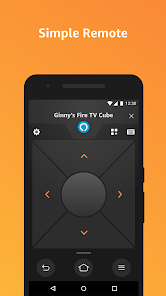
Method 1: Using the Fire TV App
- Download
and install the Fire TV App on your smartphone or tablet.
- Ensure
that your Firestick and mobile device are connected to the same Wi-Fi
network.
- Launch
the Fire TV App and select "Firestick Setup."
- Follow
the on-screen instructions to connect your Firestick to your Wi-Fi
network.
- Once
connected, sign in with your Amazon account and follow the prompts to
complete the setup process.
Method 2: Using a USB Keyboard
- Connect
a USB keyboard to your Firestick using an OTG cable or adapter.
- Use
the arrow keys on the keyboard to navigate the Firestick setup menu.
- Follow
the on-screen instructions to connect your Firestick to your Wi-Fi network
and sign in with your Amazon account.
Method 3: Using HDMI-CEC (Consumer Electronics Control)
- Ensure
that your TV supports HDMI-CEC.
- Connect
your Firestick to your TV using an HDMI cable.
- Use
your TV remote control to navigate to the HDMI-CEC settings.
- Enable
HDMI-CEC on your TV.
- Power
on your Firestick, and it should automatically pair with your TV. Follow
the on-screen instructions to complete the setup process.
Method 4: Using an Alexa-Enabled Device
- If you
have an Alexa-enabled device, such as an Echo Dot, you can use voice commands
to control your Firestick.
- Ensure
that your Firestick and Alexa device are connected to the same Wi-Fi
network.
- Say,
"Alexa, pair my Firestick" to your Alexa device.
- Follow
the voice prompts to complete the setup process.
FAQs (Frequently Asked Questions)
Can I use my TV remote as a substitute for the Firestick
remote?
Yes, if your TV remote has HDMI-CEC functionality and
supports device control, you can use it as a substitute for the Firestick
remote. Follow the instructions in Method 3 to set it up.
Is it possible to perform the initial setup without any
remote control?
Yes, it is possible to perform the initial setup without any
remote control using alternative methods such as the Fire TV App, a USB
keyboard, or an Alexa-enabled device. Refer to the respective methods outlined
in this guide for detailed instructions.
Can I use the Firestick without a remote control
permanently?
While it is possible to set up and use the Firestick without
a remote control using alternative methods, it is recommended to have a remote
for day-to-day navigation and ease of use. Consider purchasing a replacement
remote if you have lost or damaged your original one.
How do I troubleshoot if my Firestick setup without a
remote is not working?
If you encounter any issues during the setup process without
a remote, try the following troubleshooting steps:
- Ensure
that your Firestick and alternative control device are connected to the
same Wi-Fi network.
- Restart
your Firestick and the alternative control device.
- Double-check
the batteries in your alternative control device if applicable.
- For
HDMI-CEC setup, make sure the HDMI-CEC feature is enabled on your TV.
Can I pair multiple Firesticks to a single remote
control?
Yes, you can pair multiple Firesticks to a single remote
control. Simply follow the pairing instructions provided with the Firestick to
connect additional devices.
Where can I purchase a replacement Firestick remote?
You can purchase a replacement Firestick remote from various
online retailers or directly from Amazon's official website.
Conclusion
Performing a Firestick setup without a remote control is
possible using alternative methods such as the Fire TV App, a USB keyboard,
HDMI-CEC, or an Alexa-enabled device. By following the steps outlined in this
comprehensive guide, you can quickly and easily set up your Firestick and
continue enjoying your favorite streaming services and apps. Don't let the
absence of a remote control hinder your entertainment experience!